


Find the Right First Fix for Your Google Maps Listing
Your business is open, your Google Business Profile exists, and customers still say they cannot find you on Google Maps. Before you change categories, rewrite your website or create another listing, work out exactly what is missing.
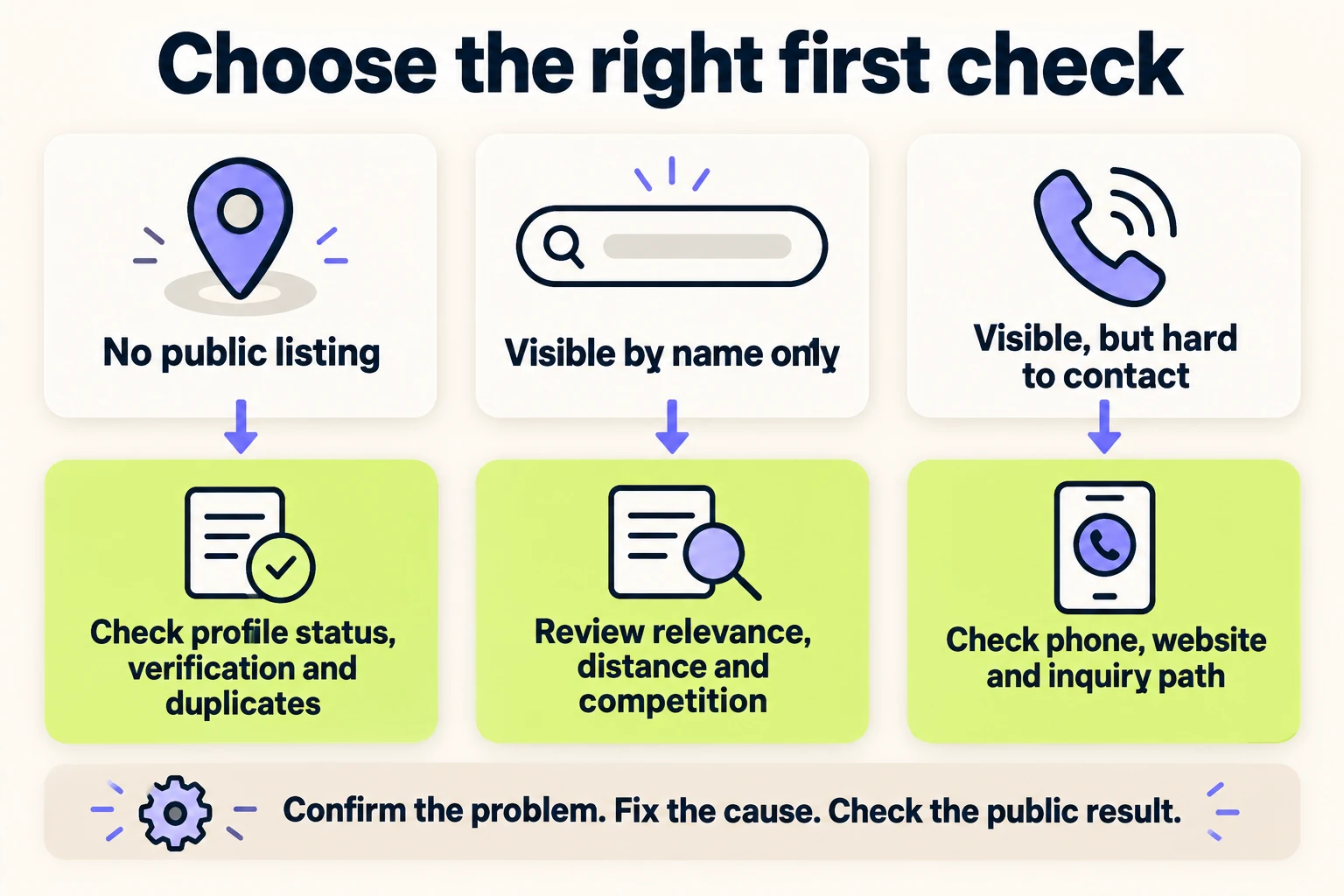
A profile that cannot be opened by customers needs a different response from a business that appears by name but loses out for “plumber near me.” A listing can also be visible while sending people to an old phone number or the wrong page.
This guide helps business owners identify the problem, collect useful evidence and choose a first fix. Start with public visibility and profile status. Then review business information, local search results and the path to a customer inquiry.
Google Business Profile, often shortened to GBP, is the current name for Google My Business. If your business is not showing where customers expect it, check the listing you already have before creating another one.
Business Not Showing on Google Maps? Start With This Check
Search for your business on Google Maps using its exact name and city. Then open the public Maps link from your Business Profile, if you have one. Check the result as a customer would, outside the account that manages the profile. An owner’s editing screen does not establish what the public can see.
Write down whether the correct listing opens, whether it appears in a name search, and whether the business information is accurate. Next, search for a specific service you actually provide in a location you serve. Keep these tests separate.
| What you observe | What to check next | First useful action |
|---|---|---|
| The public profile does not open, or customers cannot find it by name. | Verification, restrictions, duplicates and recent changes. | Read the status in the owner account and record the exact notice. |
| The profile opens directly but is hard to find by name. | Profile age, name accuracy, recent edits and possible duplicate listings. | Compare the public listing with the profile you manage before escalating. |
| The business appears by name but not for a service search. | Category relevance, competition and search location. | Compare the same service query from relevant customer locations. |
| The business appears near its base but not across the whole service area. | Distance and the difference between an area served and a business location. | Record where visibility changes instead of treating the whole profile as missing. |
| The listing appears, but its contact details are wrong. | Phone, website link, hours and accepted profile edits. | Correct the confirmed error and test the public contact path. |
| Visibility looks steady, but calls or inquiries have fallen. | Demand, customer fit, call handling and the linked landing page. | Compare profile interactions with qualified inquiries over the same period. |
These checks narrow the investigation; they do not prove a cause on their own. For example, a failed name search deserves attention, but it does not by itself prove that Google suspended your business. Google’s guide to finding your business explains name-and-city searches, new-profile timing and visibility restrictions.
Check Your Google Business Profile Status and Verification
Sign in to the Google account that manages the business and open the correct profile. If you operate several locations, match the business name, address and public Maps link. An issue on one location does not establish the status of another.
Verify your business using the options Google offers
Look for a verification prompt or an unresolved review message. Use the verification options Google offers for that profile; the available methods are determined by Google. Submitting information is a step in the process, so check for the final confirmation.
Google says verification reviews can take up to five business days and occasionally longer. If a prompt returns, follow the instructions for re-verification. See the current Business Profile verification guide rather than assuming every business can use the same method.
Postcard verification is available only for some profiles. Follow the steps offered in your account instead of waiting for a method Google has not offered you.
Keep a dated record of what you submitted and the message you now see. This makes a support request clearer than “I verified it already,” which could mean the verification was completed, submitted or attempted.
Your profile is suspended or disabled
If the account shows a restriction, read its stated reason and the linked policy. Review the business details before appealing. Prepare evidence that accurately supports the real business, such as registration, a license or a utility bill, with details that match the profile.
Use Google’s suspended-profile appeal process. Prepare matching business documents before starting, attach any supporting evidence and review the information before submitting the appeal. Follow the current instructions and any time limit shown in your account. Do not create a replacement profile for the same business while the appeal is under review.
Save the case reference and decision. If the issue is account-level access, address that notice too. Profile optimization cannot substitute for resolving a restriction.
Resolve Duplicate Listings and Ownership Problems
Search for the business’s current and previous names, then compare addresses, phone numbers and public links. Google says a profile marked as a duplicate will not appear on Search or Maps. An existing listing may also be controlled by a former employee or another owner account.
Follow the appropriate duplicate and ownership guidance. Request access to an existing verified profile when needed. If two distinct eligible businesses were incorrectly merged, use support to appeal that status.
Confirm which profile is which before removing anything. Keep links and screenshots of both records. Guessing can put the wrong listing, its content or management access at risk.
Confirm Eligibility for Storefronts and Service-Area Businesses
A complete profile still needs an eligible business behind it. Google generally requires in-person customer contact during stated hours, with specific exceptions. Online-only businesses and lead-generation businesses are among its examples of ineligible businesses. Check the eligibility and ownership rules for your actual business model.
Describe how customers receive the service. Do they visit your location, do you travel to them, or do both happen? Use that answer when reviewing the location configuration.
Customers visit a storefront or office
Check that the listed address is the real customer-facing location. Google’s business representation guidelines require permanent signage for businesses showing an address. A rented mailing address where you do not operate is not an eligible location; coworking locations have additional requirements.
Compare the public address with your website’s directions and the entrance customers actually use. If a map pin sends people to a neighboring building, record that specific problem. Fixing an inaccurate pin helps customers reach the right place; it does not establish a new geographic base for ranking.
You travel to customers as a service-area business
If customers are not served at your business address, Google says to remove that address from the public profile and use a service area. A hybrid business can have both a customer-facing location and a service area when it meets the requirements. See Google’s service-area guidance.
List the areas you genuinely serve. Treat this as customer information, not a promise that your business will rank everywhere within those boundaries. A city you serve is not automatically a separate eligible office.
For example, a mobile cleaning business might serve three nearby cities from one base. The website can explain those service areas without claiming it has three storefronts. Keep profile details and website wording aligned with that reality.
Optimize Business Information After Resolving Profile Issues
Once you understand the status and business model, review the information customers can see. Work from confirmed facts rather than adding phrases because competitors use them.
Check your business name and business categories
The business name should match its real-world name. Google’s representation rules prohibit unnecessary additions to the name, including service or location wording that is not part of that name. Put those details in their appropriate fields.
Choose a primary category that describes the core business as specifically as the available choices allow. Add a small number of relevant additional categories when justified. Google’s category guidance says categories affect local ranking and that category edits can trigger re-verification.
Ask a practical question: would a customer seeking the business represented by this category be a good match for what we actually do? If the answer is no, the category needs review. Do not copy every competitor category or add one for each item on your service list.
Check services, hours, phone number and website link
Compare the listing with your current offer. Remove obsolete services, explain relevant services clearly, and check normal and special hours. A profile can be visible while leaving customers unsure whether you handle their job.
Then test the contact details yourself:
- Does the public phone number reach the correct business?
- Does the website link open the intended page on a phone?
- Does that page explain the service and location customers selected?
- Can a visitor find the contact or booking action without searching through several menus?
Make confirmed edits through the profile and check the published result after review. Google’s profile editing guide explains how to update business information. Keep an edit log so you know what changed and when.
Help Your Business Show Up on Google Maps for Relevant Searches
A business that appears for its name but not for a general service query may have a ranking problem. Verification gives you a management foundation; it does not secure a position for every search.
Google describes local ranking through relevance, distance and prominence. Relevance concerns the match to a search, distance concerns the searcher’s location, and prominence concerns how well known the business is. Its local-ranking guidance is the starting point for understanding those factors.
Compare the same search from meaningful locations
Choose a short set of customer searches tied to services you want to sell. Include the service and a relevant city, plus a “near me” search where appropriate. Each keyword should represent a real customer need. Record the actual search phrase, date, location and result.
Check places where your intended customers are located. A search from your own office tells you about that search context. It cannot establish visibility across an entire city.
You can use a location-based ranking tool to make these observations more consistent. Record its settings and treat its results as sampled visibility, not a universal Google Maps rank. A grid of results is useful when each point answers a real customer-location question.
Separate Google Maps, the map pack and ordinary website results
Write down where you searched and what appeared. The Maps result list, the local pack (also called the map pack) in regular Google Search and the ordinary website results are different views. Your website may appear in search results while the Business Profile is absent from a particular map-based result.
Compare like with like: the same query, surface and approximate location. Also distinguish advertisements from unpaid listings. A paid appearance does not prove that your organic local ranking changed.
Compare competitors without copying their claims
Look at the businesses returned for your chosen service. Check whether they provide the same kind of work, serve the same customers and have a relevant real location. Their visible categories, website information and reviews can identify questions to investigate.
Do not conclude that one difference caused their position. A competitor with more photos is not proof that uploading the same number will lift your rank. Use the comparison to find factual gaps you can address.
Support Your Maps Listing With a Useful Local Website
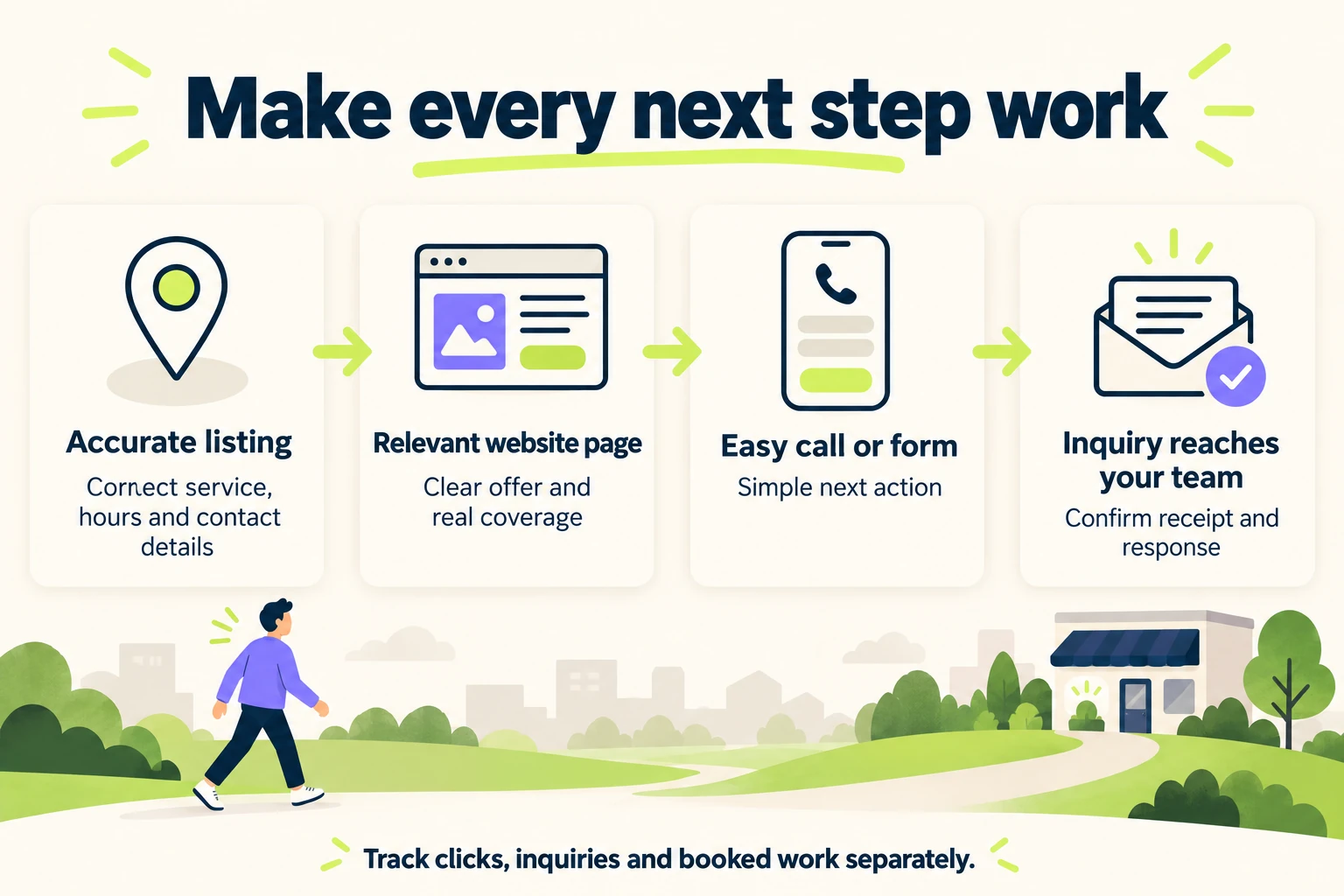
The profile and website should tell a coherent story about the business. A customer who clicks through should immediately understand the service, where it is available and how to ask for help.
Review the page linked from the profile. For one location, the homepage may already be the clearest destination. For multiple genuine locations, a useful page for the relevant location may better answer the visitor’s questions. Choose the page on that basis rather than sending everyone to a generic page with no local detail.
Make the destination useful with:
- A clear description of the service and the customer it suits.
- Accurate location or service-area information.
- Specific scope, process and any important limitations.
- Real supporting evidence, such as relevant work photos or permissioned testimonials.
- A working phone, inquiry or booking action.
Review the wider online presence too. Correct significant inconsistencies on the website and any important directory, such as Yelp, especially old addresses or phone numbers that confuse customers. Accurate details across the web help customers find the right business. Avoid turning this into a hunt for identical punctuation across every mention on the internet.
The TeamSoda Local SEO checklist covers the broader foundation. If the website itself is difficult to find, use the small-business search visibility guide to diagnose that separately.
Build a steady, genuine review process
Ask customers for an honest Google review after a real experience and respond helpfully. Keep the process straightforward for the whole customer base. Google’s review policies prohibit incentives and selectively soliciting positive reviews.
Read feedback for useful customer questions as well as praise. If people repeatedly ask whether you offer a service or cover a neighborhood, clarify the answer on the profile and website. This improves the information available to future customers without manufacturing a success story.
Three Examples of What to Fix First
Consider these hypothetical businesses. The observations determine the next action; the examples do not assume a ranking improvement or a particular number of new calls.
A new electrician can be found by name but not for a service search
The owner can open the public profile, and the verification is complete. A name-and-city search returns the correct business, but “electrician near me” does not show it in the results the owner checks.
The next task is to review the primary category, services and location-specific search evidence. Record when the profile was created and verified. Creating a second listing would not answer the ranking question. A focused review of relevance and competition gives this business a clearer starting point.
A cleaning company disappears after a profile change
The company recently changed its listed address, and the owner now sees a re-verification request. Customers cannot open the expected public listing.
The first task is to resolve the actual verification notice and confirm the address configuration matches how the company serves customers. Rewriting every service page would leave the account issue unresolved. Save the change date, current notice and evidence for the real business location.
An auto repair shop appears, but inquiries go to the wrong place
The shop’s name search works, and the profile shows in the owner’s recorded service searches. Its website link opens a page for a former location, however, and the phone number is outdated.
Correct those details and test the live customer path. Then compare relevant inquiries before and after the correction using the same measurement method. In this case, an observed contact error deserves attention before a broad ranking campaign.
Turn Google Maps Visibility Issues Into a Clear Next Action
Turn your diagnosis into a small work record. Include the public Maps link, owner-account status, search evidence, recent changes and the person responsible for the fix. Keep account messages and business documents private when requesting help.
| Record | What to include |
|---|---|
| Symptom | Missing publicly, absent from a service search, wrong information or weak inquiries. |
| Evidence | Public profile link, dated screenshot, exact search and customer location. |
| Profile status | The actual notice shown to the owner, including any unresolved verification or restriction. |
| Recent changes | Name, address, categories, ownership, website or phone changes with dates. |
| Next action | The specific correction, verification task, support request or ranking investigation. |
| Owner and review date | Who will act and when they will check the saved decision or public result. |
Use the record to avoid making several unrelated changes at once. If you are appealing a restriction, concentrate on the relevant policy and evidence. If the public listing works, start with a confirmed information error or a defined service-and-location visibility gap.
A useful next action sounds like “correct the old phone number and verify it on the public profile.” “Do more local SEO” leaves the problem, owner and completion check unclear.
Measure Customer Actions Alongside Google Maps Visibility
After a correction, check both the public result and customer behavior. Google Business Profile performance reports can show searches, views, website clicks and call-button clicks for verified profiles. Google defines the calls metric as clicks on the call button, so it does not establish answered calls or qualified leads. See its performance metric definitions.
Use comparable date ranges and account for holidays, advertising or a change in services. Keep the distinction between:
- Visibility: whether the business appears in your recorded searches.
- Interactions: whether people click the website or call button.
- Inquiries: whether the business actually receives relevant calls or forms.
- Outcomes: whether suitable inquiries become appointments or booked work.
If visibility improves but suitable inquiries do not, review the offer and contact experience. If inquiries rise while rankings vary, keep tracking both. A single search position is too narrow to describe the business result.
For the tracking setup, use TeamSoda’s guide to measuring SEO leads. Keep the Maps investigation focused on the problem you observed.
Frequently Asked Questions About a Business Missing From Google Maps
Why is my verified business not showing on Google Maps?
Check whether customers can open the public profile and find it by name. If they cannot, review status, recent changes and duplicate issues. If it opens but does not appear for a service query, investigate the search location, categories and local competition. Verified status alone does not explain every missing result.
How long should a new business take to appear?
Verification review and search visibility are separate stages. Google currently says verification review can take up to five business days, sometimes longer, while rankings for new businesses can take up to a month to appear. These are guidance windows, not a promised ranking date. Check the current status if an unresolved notice remains.
Why does my business appear only when I search for it?
Do not judge a business listing only by whether its icon is visible while browsing the map without a search. Test the public link, a name-and-city search and a relevant service query. If the business is listed and customers can open it, document which search fails before choosing a fix.
Will adding more service areas make me rank in every city?
A service-area setting tells customers where you work. It does not establish a physical location in each city or guarantee visibility there. Check searches from the places your customers are located and explain your genuine coverage on the website.
Should I create a new Google Business Profile to fix a missing one?
First search for the existing listing and inspect its status. A duplicate can complicate the issue. Google tells businesses that move to update the existing profile rather than create a new one, and advises against creating a replacement during an appeal. Use the appropriate ownership, duplicate or appeal process.
Can Google Ads fix my organic Maps ranking?
Google says businesses cannot request or pay for a better local ranking. Advertising can support a separate paid campaign, but it does not resolve an organic ranking issue or an ineligible profile. Identify the profile problem before choosing an advertising response.
When should I contact Google Business Profile support?
Use support when a specific account, verification, ownership or duplicate issue remains unresolved after following the relevant help process. Include the public profile link, exact notice, dates and existing case reference. If the listing is public and the issue concerns particular service searches, document that distinction clearly.
Get a Clear Starting Point for Your Local SEO
The most useful first fix follows the evidence: resolve a profile restriction, correct inaccurate business information, investigate a specific local ranking gap or repair the customer contact path.
TeamSoda’s Local SEO service connects profile accuracy, local website content and customer actions. Share a link to your Google Business Profile, the service you want customers to find and the areas you genuinely serve. We can help turn those details into a practical plan for the next improvement.